
How to Calculate Final Grades Quickly (with Examples)

You know the drill. It’s late, coffee’s gone cold, and there’s still a mountain of papers staring you down. Grading isn’t just a task, it’s a time-consuming saga that stretches on way past your bedtime. You’ve likely had moments wondering why you signed up for this endless math project disguised as teaching. Manual grade calculations, while straightforward in theory, quickly become overwhelming when you’ve got multiple classes and dozens of students, each with different assignments and weights to manage.
You’re probably nodding right now, picturing the endless rows of numbers, percentages, and point values dancing across your screen or notebook. The good news is you don’t have to endure grading frustration anymore. Tools like our online grading calculator exist specifically to rescue you from grade-book math spirals. Quick solutions really do make life simpler, freeing you up for actual teaching or enjoying your weekend.
Breaking Down the Basics of Grade Calculations
Every grading system has its quirks, but understanding them clearly can cut your stress significantly. Here’s a simple breakdown of the three most common systems teachers use:
Percentage-Based Grading
Percentage grading calculates grades strictly by dividing the points earned by total points possible. Say a student scored 45 out of 50 points on a quiz. To get the percentage, simply divide 45 by 50, then multiply by 100. The student’s final grade is 90%. Straightforward, right?
Point-Based Systems
In a point-based system, each assignment adds specific points to a total. For example, you have assignments totaling 300 points for the semester. If a student earns 270 points across all assignments, you’d divide 270 by 300, multiply by 100, and get their final grade, exactly 90%.
Weighted Grades
Weighted grading assigns different importance to assignment types, like tests, homework, or participation. Imagine tests make up 50% of the total grade, homework 30%, and participation 20%. If a student scores an average of 85% on tests, 90% on homework, and 95% in participation, each of these is multiplied by its respective weight. Add those results together, and you have the final weighted grade.
Quick Formulas for Common Grading Systems (Teacher-Approved)
Grading formulas can seem intimidating, but they’re simpler than you might expect. Here’s how to calculate grades using the most common methods quickly and painlessly.
Percentage-Based Grading
This system keeps it clear-cut. Just use:
(Total Points Earned ÷ Total Points Possible) × 100 = Final Grade Percentage
For example, imagine your student earned 85 points out of 100. Divide 85 by 100, multiply by 100, and there you have it, 85%. Easy, quick, and reliable.
Point-Based Systems
This one works similarly, based on total points throughout a grading period:
(Points Earned ÷ Points Possible) × 100
Say your student gathered 270 points out of 300 available. The calculation becomes straightforward: 270 ÷ 300 = 0.9. Multiply by 100, and the grade is 90%.
Weighted Grades
Weighted grading assigns different importance to specific assignments or categories. A typical setup might look like this:
- Tests: 50%
- Homework: 25%
- Participation: 25%
Here’s how you’d calculate this step-by-step:
- Tests average: 90% → 90 × 0.50 = 45
- Homework average: 80% → 80 × 0.25 = 20
- Participation average: 95% → 95 × 0.25 = 23.75
Now add those results: 45 + 20 + 23.75 = 88.75%.
✅ Teacher Tip: Keep your categories simple to avoid confusion during busy weeks.
Step-by-Step Guide: How to Use Our Grade Calculator
Using EasyGrade Calculator means waving goodbye to complicated math. Follow these straightforward steps:
- Enter the total number of questions on your test, quiz, or assignment.
- Input how many questions the student answered incorrectly.
- Check the result displayed instantly, showing the correct and wrong answers clearly.
- Hit “Reset” to start fresh with your next grading task.
- Use the “+1 Wrong” button to quickly adjust mistakes as you grade.
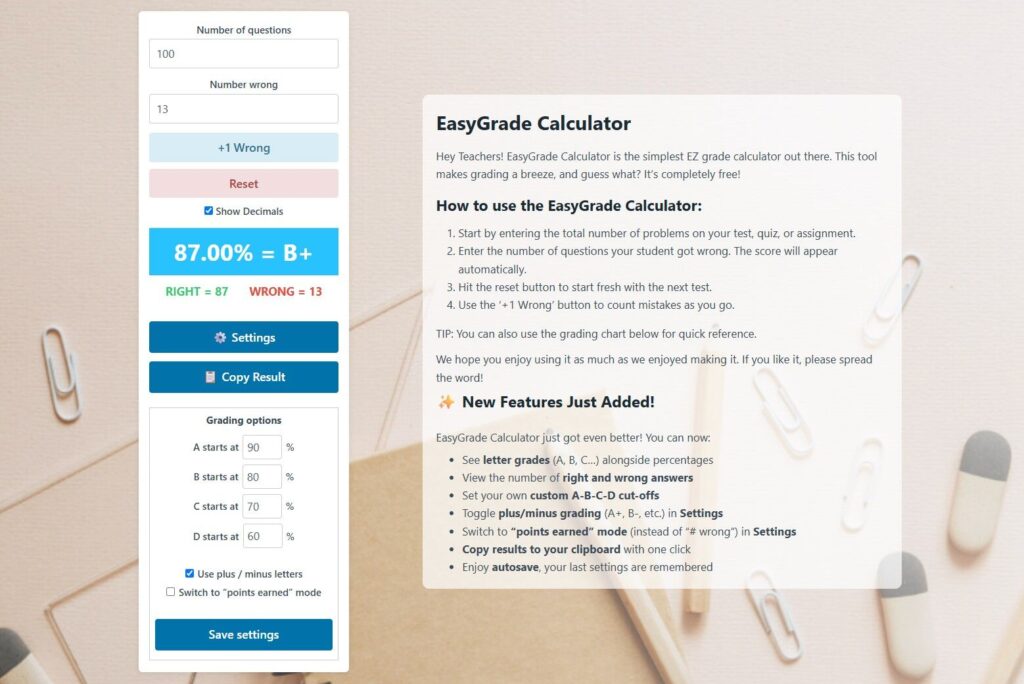
For instance, if a student missed 2 questions on a 100-question exam, simply enter “100” as the total questions and “2” in the “Number wrong” box. Immediately, you’ll see the student earned a 98%, which is an A+.
⏱️ Time Saver: You can also use the grading chart below the calculator for quick reference.

Real Classroom Examples to Clarify Confusing Situations
Even simple calculators occasionally face unusual classroom grading situations. Here’s how EasyGrade handles these smoothly:
Using Plus/Minus Grading (A+, B−, etc.)
Toggle plus/minus grading in the settings menu to quickly see if that 87% lands your student a B+ or B. Customize grade boundaries to match your school’s standards exactly.
Adjusting Letter Grade Thresholds
If your school’s grading scale isn’t standard, no worries. Easily set custom thresholds for letter grades (A starts at 90%, B at 80%, etc.). This ensures your calculator aligns perfectly with your grading policy, avoiding any confusion.
Switching Between Percentage and Points Earned
Prefer grading by total points earned rather than questions missed? Just switch modes in the settings. Your calculator adjusts instantly to reflect this preference, simplifying your workflow.
What to Check if Grades Don’t Look Right
Even the best of us hit a snag now and then. Grades suddenly looking suspicious? Here’s a quick troubleshooting guide to get you back on track without pulling your hair out:
Double-check your points entry accuracy (we’ve all accidentally typed 1000 instead of 100). A quick glance at the entered numbers often solves the mystery instantly.
Confirm your custom grade boundaries. If your grading scale is personalized, ensure each threshold is entered correctly and consistently.
Verify your settings. Check whether you’re correctly set on percentage mode or points earned mode. Mixing these up can lead to grades appearing oddly skewed.
✅ Teacher Tip: When in doubt, ask a colleague to glance over your settings, fresh eyes often spot what you missed!
Why Automating Grades Makes Your Life Easier (No Math Degree Needed)
Automating your grade calculations doesn’t just save you from math headaches, it also offers concrete benefits you’ll quickly appreciate:
Immediate grade calculations mean less stress for you and your students. No more waiting anxiously for grade results, everyone breathes easier.
More teaching, less calculating. Your valuable classroom time should focus on lessons, not endless math. Automation gives you space to plan and teach effectively.
Reliable results every single time mean fewer uncomfortable conversations at parent-teacher meetings. Accurate, automatic calculations eliminate frustrating mistakes and confusion.
Let’s face it, grading isn’t anyone’s favorite pastime. Luckily, easy solutions exist. Give EasyGrade Calculator a try, unless grading by hand is genuinely your idea of fun (no judgment, but also, who are you?).
Bookmark the calculator now, keep it handy, and think of this blog as your helpful, supportive grading buddy.
Absolutely. Here are some thoughtful FAQ suggestions that fill in gaps not yet covered in your blog or outline. Each question addresses practical concerns teachers may have that weren’t directly covered:
FAQ
1. What if my test has bonus questions? How should I factor those in?
If bonus questions increase the total number of points available, include them in your “Number of questions” total. If they’re extra credit not tied to the main score, calculate the grade normally, then add the bonus points afterward. Just be consistent about how you treat them.
2. Can I use this calculator for non-test grades like participation or projects?
Yes, but only if you’re grading based on the number of correct vs incorrect components. For participation or projects that use rubrics or subjective scales, it’s better to convert rubric scores into a percentage first, then enter them.
3. Does the calculator round up automatically?
No, rounding is based on the raw percentage. You’ll need to round up or down manually depending on your grading policy. You can use the Show Decimals toggle to help make the call.
4. Can I change the grade scale to match my school’s grading policy?
Yes, you can set your own custom cutoffs for A, B, C, and D grades under Settings. You can also enable plus/minus grading if that’s part of your system.
5. Will my settings be saved if I come back later?
Yes, the calculator has autosave. Your last-used settings will still be there when you return, saving you time during future grading sessions.
6. Is there a way to print or export the results?
While there’s no print button, you can copy the result using the “Copy Result” button and paste it into a spreadsheet, email, or report. It’s a quick way to keep track of grades digitally.
7. What if I use a grading scale like 4.0 GPA or standards-based grading?
This calculator is designed for percentage and letter-grade systems. If your school uses GPA or standards-based marks, you may need to convert those scores to percentages first before using the calculator.